Before you start
- Shot Clock Pro on the phone that runs the game, or the free 10-minute trial.
- The clock open on a screen, with your phone connected as the remote.
- Internet on the streaming computer or device.
Step by step
Open the clock and connect your phone
Open shotclock.online/display on the gym screen or on the vMix computer, and scan the QR code with your phone. The phone is now the remote.
Copy the overlay link
On the remote, open Settings and tap Copy OBS overlay link. It works in vMix too. The link looks like shotclock.online/overlay/123456.
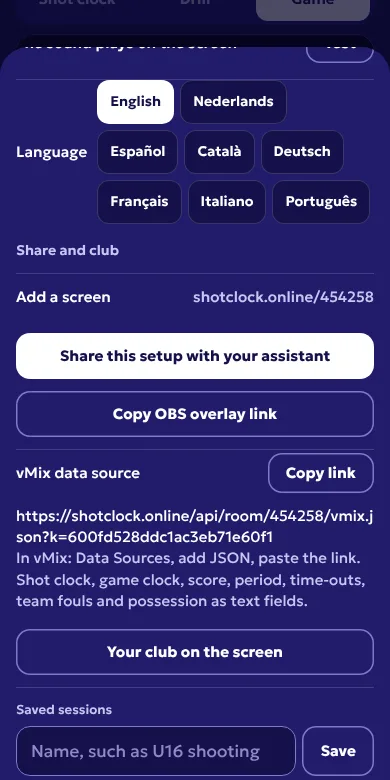
Settings on the remote: the overlay link and the vMix data source. Add a Web Browser input
In vMix, click Add Input, choose Web Browser and paste the link. Keep the size at your output size, usually 1920 × 1080. vMix supports the transparent background.
Put it on an overlay channel
Click 1 under the new input to show it over the program. The bar sits in the bottom left corner. Use the same button to take it off.
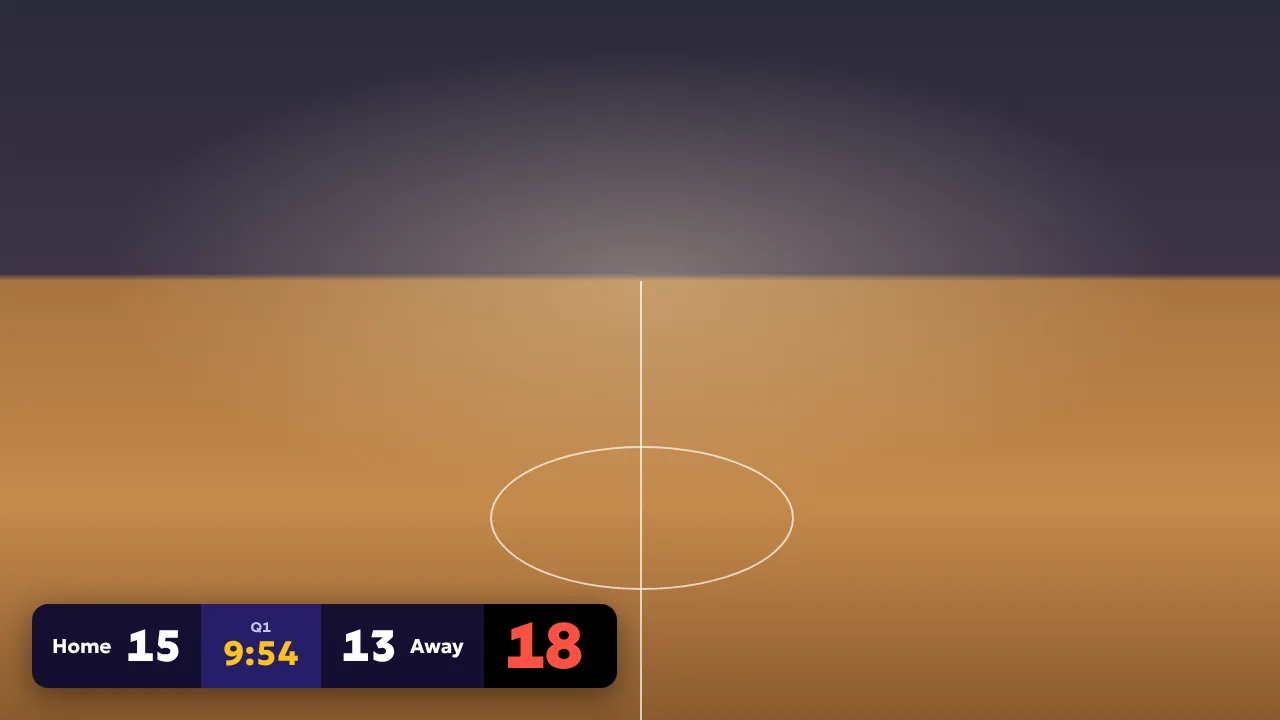
The overlay in game mode, here on a sample background. In your stream the camera is behind it.
Or: fill your own title with a data source
Want the clock in your own graphics? The vMix data source gives one row of text fields: shot, game, period, home, away, homeName, awayName, homeTimeouts, awayTimeouts, homeFouls, awayFouls, homeBonus, awayBonus, possession, timeout and running.
Copy the data source link
On the remote, open Settings. Under vMix data source, tap Copy link. This link has its own read key, so it only reads.
Add a JSON data source
In vMix, open Data Sources in the bottom right corner, click Add, choose JSON and paste the link. Set the update interval to 1 second or less, and click OK.
Link the fields of your title
Right-click your title, choose Title Editor, select a text field and click Data Source. Pick the Shot Clock source and the column, such as shot or home. Repeat for each field.
Tips
- Name the text fields of your title like the columns (shot, game, home, away). With Column on Auto, vMix then links them by itself.
- For a shot clock that ticks exactly on the second, the Web Browser input is the most precise. The data source updates as often as vMix asks for it.
- New match, new clock tab? The room number changes, so copy the links again or change the six digits in the URL.
- The overlay makes no sound, and neither link can change the clock.
Questions
Which vMix route should I use?
The Web Browser input if you want the shot clock on screen in two minutes. The data source if you already have a scoreboard title and want it filled with live data.
Is the background really transparent in vMix?
Yes. The vMix Web Browser input supports transparent backgrounds, and the Shot Clock overlay has none of its own.
What does the data source show outside game mode?
Only the shot clock. Fields that do not apply, like the score, are empty text, so your title keeps working.
Is it free?
Both vMix links are part of Shot Clock Pro. The shot clock itself is free, and you can try Pro once for 10 minutes on your phone.
Other streaming software
OBS Studio, vMix, Streamlabs and YoloBox are trademarks of their owners. Shot Clock is not affiliated with them.